
The Final Draft Check is a set of quality checks that run on your document after formatting is complete. It catches common issues like placeholder text that was never filled in, unused definitions, and style inconsistencies.
The Final Draft Check is available only on active Monthly or Annual subscription plans. If you are on a free or one-time credit plan, the Final Draft Check section will display a message with a link to upgrade.
Where to Find It
After formatting completes, tap the Advanced button in the footer. The Final Draft Check is the third section in the Advanced panel, below Template Requirements and Template Commands.
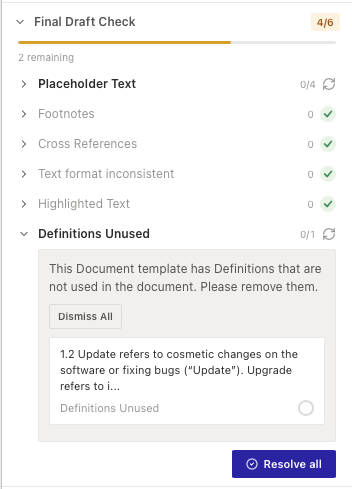
The section header shows a progress badge (e.g. “4/6”) indicating how many checks have been resolved out of the total.
The Checks
- Placeholder Text — finds text that looks like placeholder content which should be replaced with real data.
- Footnotes — checks that all footnotes in the document are properly filled in.
- Cross References — verifies that cross references in the document are valid and not broken.
- Text Format Inconsistent — finds paragraphs whose text formatting does not match the style defined by the template.
- Highlighted Text — finds text that still has highlighting applied, which is often used during drafting as a reminder.
- Definitions Unused — identifies defined terms in the definitions section that are never used in the body text.
How Each Check Appears
Each check appears as a row showing:
- The check name (e.g. “Placeholder Text”).
- A count showing unresolved versus total items (e.g. “0/4”).
- A status icon — a green tick when resolved, or a refresh icon when items remain.
Tap a check to expand it and see the individual issues.
Working with Issues
When you expand a check, you will see:
- A description explaining what the check found.
- Individual issue cards, each showing the affected text from your document.
- A checkbox on each issue card — tick it to mark the issue as resolved.
- A Dismiss All button to mark all issues in that check as resolved at once.
For Text Format Inconsistent issues, each card also shows a style dropdown letting you change the style directly.
Resolving Issues
You have several ways to resolve Final Draft Check issues:
- Fix the issue in the document — go to the paragraph, make the correction, then tick the checkbox.
- Dismiss individual issues — tick the checkbox to acknowledge the issue and remove it from the count.
- Dismiss All — use the button at the top of an expanded check to dismiss all issues in that group.
- Resolve All — use the green Resolve all button at the bottom of the entire section to resolve everything at once.
As you resolve issues, the progress badge updates automatically. When all issues are resolved, the badge turns green and the section auto-collapses.
The Final Draft Check does not block you from finalising. You can tap Finalise at any time, even if issues remain.