
After Reformat applies a template to your document, the Review Panel presents grouped suggestions for formatting decisions that may need your attention. This is a post-formatting review — it runs after all template commands have been applied, giving you a chance to fine-tune the results.
Opening the Review Panel
The Review Panel is part of the Advanced section in the add-in. After formatting completes:
- Click the Advanced button (sliders icon) in the footer of the Reformat panel.
- Expand the Document Review section.
A progress badge (e.g. “0/6”) shows how many suggestions have been resolved out of the total.
What You See
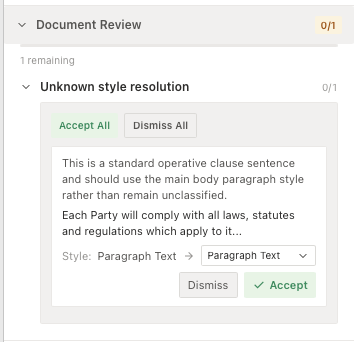
Suggestions are organised into collapsible groups based on the type of formatting concern. For example:
- Unknown styles needing classification — paragraphs that could not be automatically classified into a known style category. You can select the correct style from a dropdown.
- Body numbering and paragraph breaks — paragraphs where the numbering or structure may need adjustment.
- Execution block consistency — groups of related paragraphs (such as signature blocks) that should have consistent formatting.
Each group header shows a progress count (e.g. “0/2”, “0/3”) indicating how many suggestions in that group you have resolved. Click a group to expand it and see the individual suggestions.
Individual Suggestions
Each suggestion card shows:
- A description of what may need to change and why.
- A text preview of the affected paragraph. Click the preview to navigate directly to that paragraph in your Word document.
- The current style and, for reclassification suggestions, a style dropdown where you can choose the correct style.
- Accept and Dismiss buttons.
Accepting and Dismissing
- Accept — applies the suggested change directly to your Word document. For style suggestions, this changes the paragraph’s style. For formatting suggestions, it adjusts font, spacing, or alignment as described.
- Dismiss — removes the suggestion without making any changes. Use this when the current formatting is already correct.
Each group also has Accept All and Dismiss All buttons that apply to all unresolved suggestions in that group at once.
Progress Tracking
As you accept or dismiss suggestions, the progress badge updates. Once all suggestions in a group are resolved, the group auto-collapses. When every suggestion across all groups is resolved, the Document Review section shows a green completion indicator.
When Are Suggestions Available?
The Review Panel populates automatically after formatting completes, provided your plan includes this feature. If there are no suggestions, the section shows a message confirming your document looks good.
The suggestions are based on the formatting results and document structure. Common scenarios that generate suggestions include:
- Paragraphs with styles that don’t match any template category.
- Numbering or list structure that differs from the template’s expected pattern.
- Groups of paragraphs (like signature blocks or execution clauses) where consistency could be improved.
Tips
- Work through suggestions in order — groups are arranged by importance.
- Use the style dropdown on “unknown” paragraphs to reclassify them. The dropdown shows all styles available in the applied template.
- Click any paragraph preview to jump directly to it in your document, making it easy to see the context before deciding.
- You do not need to resolve every suggestion. Dismiss any that you are satisfied with as-is.