
The Review Chat lets you make formatting changes to your document by describing what you want in plain English. Instead of manually finding and adjusting each paragraph, you can ask the chat to update styles, format text, adjust spacing, and more — all from within the Reformat add-in.
Opening the Review Chat
After formatting completes, click the Review button (chat icon) in the footer of the Reformat panel. This opens a full-panel chat view with a back arrow at the top to return to the main view.
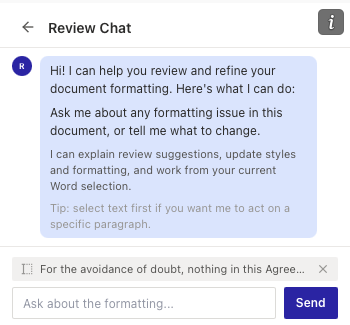
The chat opens with a greeting explaining what it can help with:
- Review and explain formatting suggestions.
- Update styles and formatting.
- Work from your current Word selection.
Using the Chat
Type your request in the text field at the bottom and click Send (or press Enter). You can ask questions or request changes in natural language. For example:
- “Change this paragraph to Heading 2”
- “Make all definition terms bold”
- “Why was this paragraph classified as body text?”
- “Set the spacing before all headings to 12pt”
The chat reads your document to understand its current state, then responds with an explanation or proposes changes.
Working with Word Selection
You can select text in your Word document before sending a message. The selected text appears as a context chip above the input field, showing a preview of what you selected.
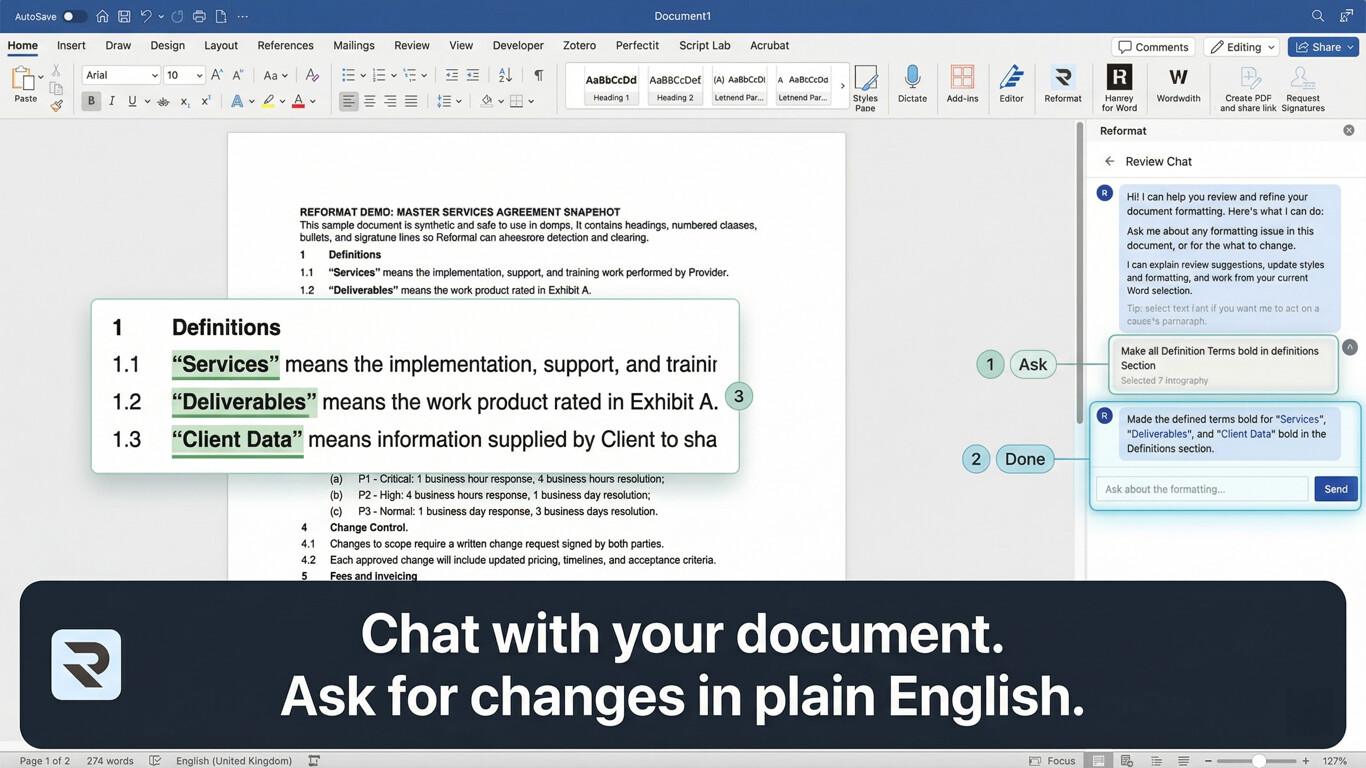
This tells the chat exactly which paragraph(s) you are referring to. You can dismiss the selection chip if you want to ask a general question instead.
Tip: Select text first if you want the chat to act on a specific paragraph. This is more reliable than describing which paragraph you mean.
Approving Changes
When the chat proposes changes to your document, it does not apply them automatically. Instead, you see a Pending Changes summary listing exactly what will be modified:
- The type of change (e.g. “Style change”, “Format text”, “Alignment”).
- The affected paragraphs, shown as text previews. Click any preview to navigate to that paragraph in your document.
- The specific change details (e.g. the new style name, formatting properties).
Below the summary are two buttons:
- Apply — confirms and applies all the proposed changes to your document.
- Reject — cancels the changes. The chat acknowledges the rejection and you can continue the conversation.
This approval step ensures you always have full control over what gets modified.
What the Chat Can Do
Read your document:
- Look up specific paragraphs by position or content.
- Show surrounding paragraphs for context.
- Search for text across the document.
- List paragraphs that use a particular style.
- Show available styles from the applied template.
- Summarise the document structure.
- Read paragraph formatting details (font, size, spacing, alignment).
Modify your document (with your approval):
- Change the style of a paragraph.
- Apply a style to multiple paragraphs at once.
- Format specific text within a paragraph (bold, italic, underline, font, size).
- Apply formatting to text across multiple paragraphs.
- Format entire paragraphs (font, indentation, alignment).
- Change paragraph alignment.
- Adjust paragraph spacing (before, after, line spacing).
- Find and replace text.
- Replace text within a specific paragraph.
Every modification requires your explicit approval before it takes effect.
Tips
- Be specific about what you want changed. “Make paragraph 5 a Heading 1” is clearer than “fix the headings.”
- Select text in Word before sending your message for the most precise results.
- You can have a multi-turn conversation — the chat remembers the context from earlier messages in the same session.
- If a change doesn’t look right after applying, you can use Word’s Undo (Ctrl+Z / Cmd+Z) to reverse it, then ask the chat to try something different.
- The chat resets when you start a new formatting run, so finish your review before applying a new template.