
You can format Word documents directly in your browser at reformatword.com — no Microsoft Word installation required. This guide explains how to upload a document, choose a template, and download the formatted result.
What You Need
- A Reformat account (sign in at reformatword.com).
- A
.docxfile to format. - Available credits (displayed on the page before you start).
The Process Document Page
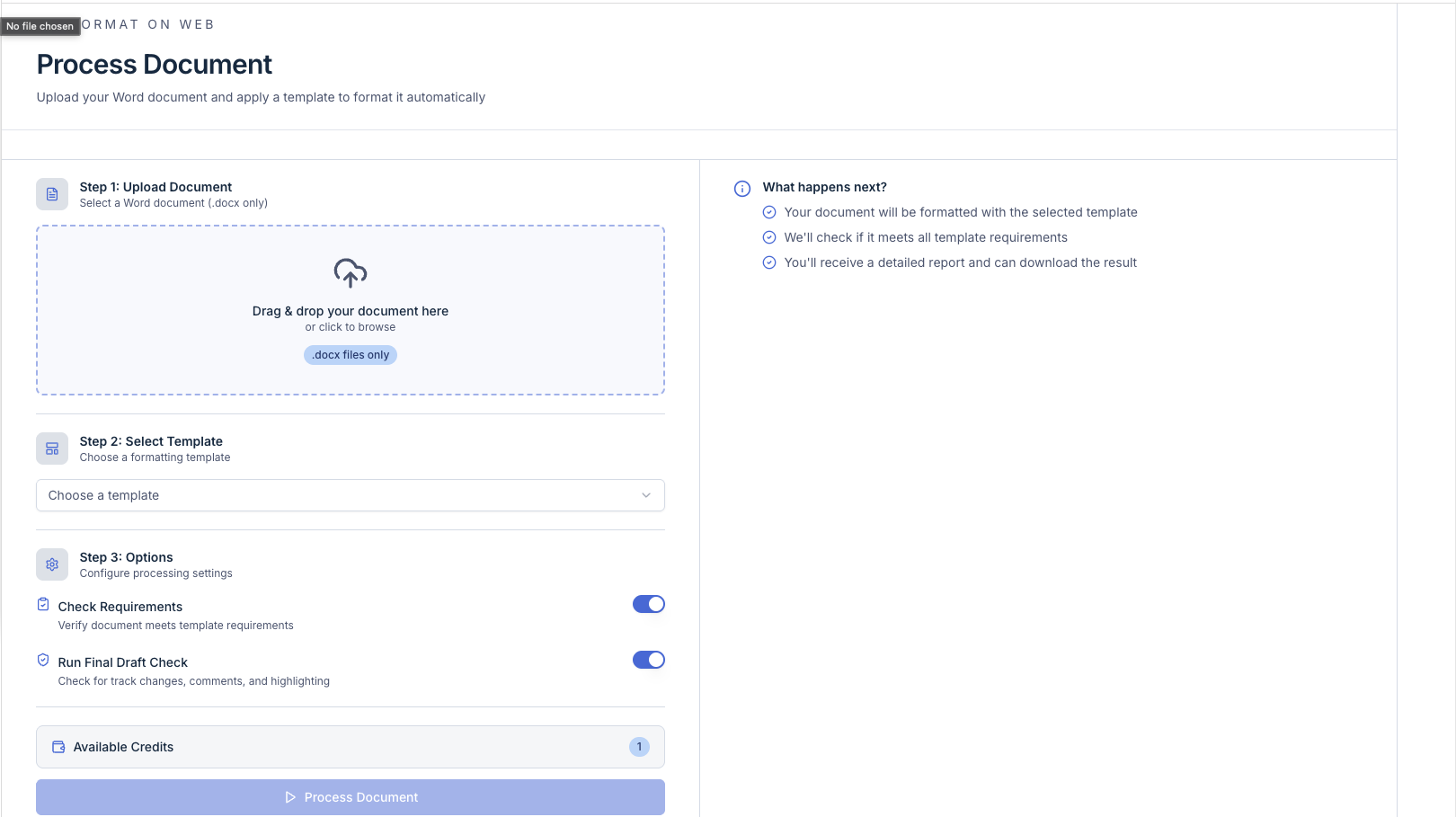
Navigate to Process Document from the website. The page is divided into two panels: a configuration panel on the left and a results panel on the right.
Step 1: Upload Document
Drag and drop your Word document into the upload area, or click to browse for a file. Only .docx files are accepted.
Step 2: Select Template
Choose a formatting template from the dropdown. The list includes all templates available to your organisation — both default templates and any custom templates your team has created.
Step 3: Options
Two optional toggles let you control what happens during processing:
- Check Requirements — verifies your document meets the template’s requirements (headers, footers, page numbers, and other structural checks). Enabled by default.
- Run Final Draft Check — scans for track changes, comments, and highlighting that should be resolved before finalising. Enabled by default.
You can turn either toggle off if you only want the template applied without additional checks.
Credits
Your available credit balance is displayed above the Process Document button. Processing a document uses one credit, the same as formatting through the Word add-in. If you have no credits remaining, the button will be disabled and a message will direct you to purchase more.
Processing
Click Process Document to begin. A progress bar appears in the results panel showing the current stage and percentage. Processing typically takes a few seconds depending on document size.
Results
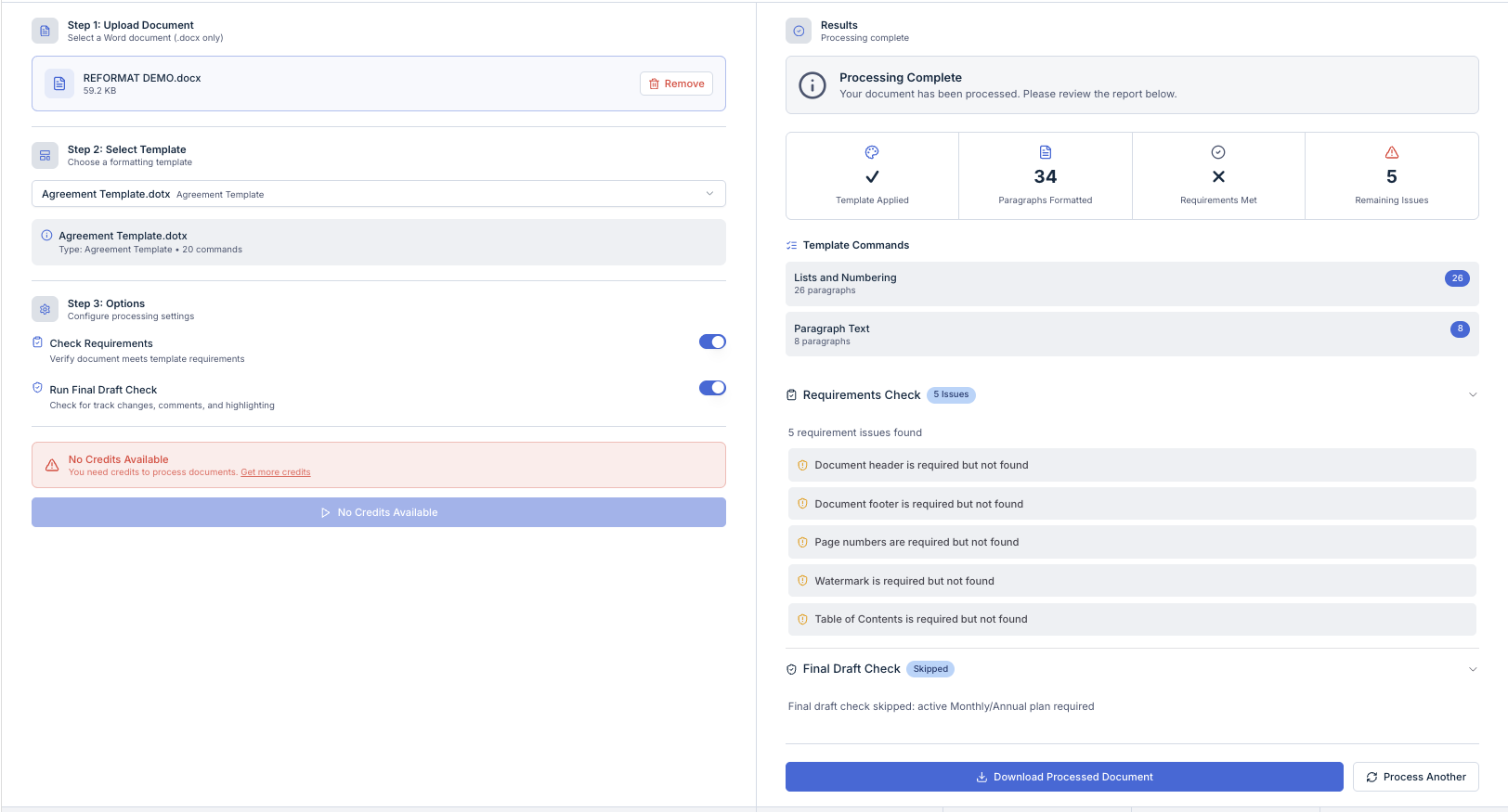
Once processing completes, the results panel shows a detailed report:
Quick Stats — four summary cards at the top:
- Template Applied — confirms the template was applied successfully.
- Paragraphs Formatted — the total number of paragraphs that were reformatted.
- Requirements Met — whether all template requirements passed.
- Remaining Issues — the count of issues found across all checks.
Template Commands — a list of the formatting commands that ran, with the number of paragraphs each command affected.
Requirements Check — an expandable section listing each requirement that was checked and whether it passed. If a requirement was not met, you will see a description of the issue and what was expected.
Final Draft Check — an expandable section organised by category (e.g. track changes, comments, highlighting). Each category shows whether it passed and, if not, the specific issues found.
Downloading Your Document
At the bottom of the results panel:
- Download Processed Document — saves the formatted
.docxfile to your computer. - Process Another — resets the page so you can upload and format a new document.
Tips
- You can process documents from any modern browser — Chrome, Safari, Edge, or Firefox.
- The web version applies the same formatting as the Word add-in, using the same templates and commands.
- If you need to review and fine-tune individual formatting decisions, use the Word add-in where the Review Panel and Review Chat are available.