
Template Commands are the formatting operations that Reformat applies to your document. When you apply a template, each command runs in sequence, analysing your document and assigning the correct styles to paragraphs.
Where to Find Them
After formatting completes, tap the Advanced button in the footer. Template Commands is the second section in the Advanced panel.
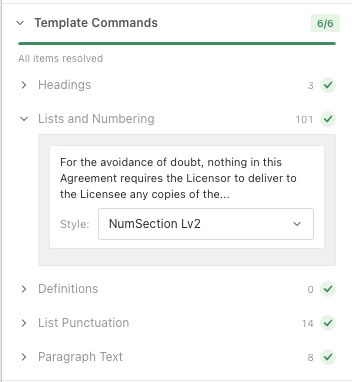
The section header shows a progress badge (e.g. “6/6”) indicating how many commands have completed.
The Commands
Each template can include some or all of the following commands:
- Headings — identifies heading paragraphs and applies the appropriate heading styles (Heading 1, Heading 2, etc.).
- Lists and Numbering — finds list items and numbered paragraphs and applies the correct list styles with proper numbering.
- Definitions — locates defined terms and applies definition styles to format them consistently.
- List Punctuation — standardises the punctuation at the end of list items for consistency throughout the document.
- Signatures — identifies signature blocks and applies signature formatting styles.
- Paragraph Text — handles all remaining body text paragraphs, applying the correct paragraph styles.
Not every template includes every command. The commands you see depend on what has been configured for the selected template.
Reviewing Command Results
Each command appears as a row showing:
- The command name (e.g. “Lists and Numbering”).
- A count of how many paragraphs were affected (e.g. “101”).
- A status icon — a green tick when complete.
Tap any command to expand it and see details about the paragraphs it styled.
Changing a Style Assignment
If Reformat assigned the wrong style to a paragraph:
- In your Word document, click inside the content control border surrounding the paragraph you want to change.
- The add-in will automatically expand the relevant command in the Template Commands section and show the selected paragraph.
- You will see a preview of the paragraph text and a Style dropdown showing the currently assigned style (e.g. “NumSection Lv2”).
- Use the dropdown to select a different style.
For unknown paragraphs (those not matched by any command), clicking the content control border opens a floating style picker directly in the panel. Select the correct style to reclassify the paragraph.
Unknown paragraphs also appear in the Document Review section as “Unknown styles needing classification”, where you can assign the correct style and click Accept.
Enabling/Disabling Commands
When creating custom templates in the Template Editor:
- Open the Template Editor
- Click the Commands tab
- Toggle each command ON or OFF
Disabling irrelevant commands speeds up processing. For example, disable Definitions for templates that don’t use a definitions section.